One Checkify Pass per site. Your page chooses the proof — human, age 18, or age 25 — when the user starts verification. Drop in the embed snippet and verify the result on your server.
<script src="https://checkify.me/sdk/v1/checkify.min.js"></script>
<div data-checkify-pass="chk_live_YOUR_PASS_ID" data-checkify-request="human"></div>
Create a digital site in the business dashboard, copy your Pass ID, register the domains where the embed will run, then paste the snippet below. Optional DNS, meta tag, or file verification increases assurance but is not required for the embed to work.
Need help? Email support@checkify.me or open the Checkify Passes tab after signing in to copy your Pass ID and integration snippet.
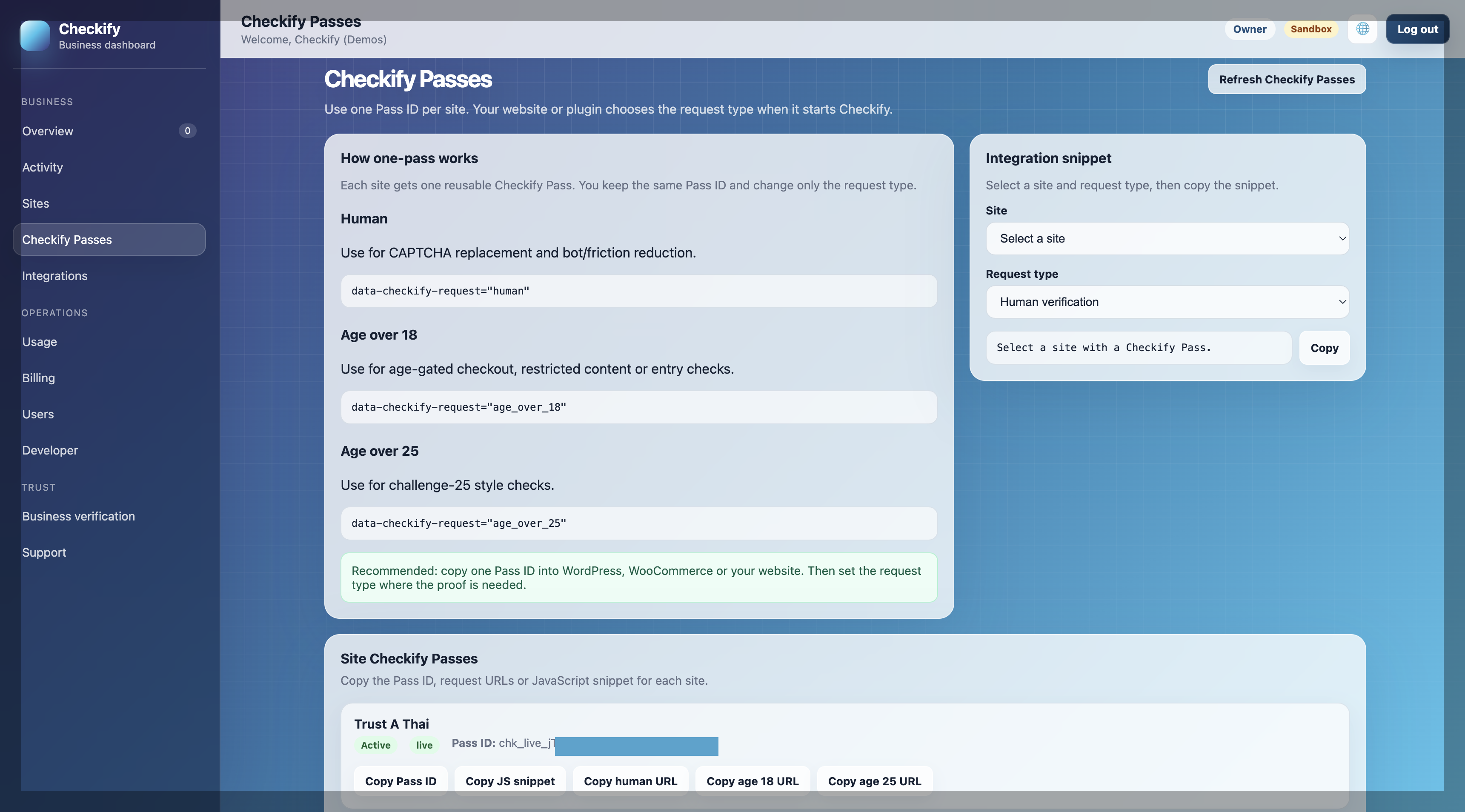
Checkify auto-provisions one reusable Pass ID when you create a digital site. You keep the same Pass ID everywhere on that site — checkout, login, registration — and set data-checkify-request where each proof is needed. No per-form launcher setup.
Auto-mount widgets or bindForm for login, signup, checkout, and contact forms. The SDK handles the button, hidden checkify_token field, and submit state.
Available nowCall POST /v1/qr/results/verify with your site API key and the request_id from the hidden field. Never trust the browser alone — verify before signup, checkout, or password reset.
Available nowInstall the Checkify plugin, paste your Pass ID, and choose human or age checks on the pages you protect. Same one-pass model as custom sites.
Available nowSites, Passes, and proof requests are separate layers. This keeps WordPress plugins, WooCommerce, and custom sites simple: one ID to copy, many places to use it.
Register your business, add a digital site, and list allowed domains (for example example.com and www.example.com). Each site gets exactly one Checkify Pass.
Find your Pass ID in the business dashboard under Checkify Passes or Developer. Use the same ID in your website, plugin, or backend integration — it does not change when you switch proof types.
Set data-checkify-request to human, age_over_18, or age_over_25 on each embed or bindForm call. Human checks are usually free; age checks consume credits when approved.
| data-checkify-request | Typical use |
|---|---|
human |
CAPTCHA replacement, bot reduction, frictionless human check |
age_over_18 |
18+ checkout, restricted content, age-gated signup |
age_over_25 |
Challenge 25, higher age thresholds |
The JavaScript embed and server verify endpoint are live in production. Use the business dashboard to create sites, copy Pass IDs, and issue site API keys.
Mobile app handoff and npm packaging are on the roadmap. Everything you need for website integrations works today with the CDN script and REST verify API.
Legacy launcher IDs are deprecated. Use Pass ID + request type for all new integrations.
Four steps from site setup to a verified user on your backend. The Pass ID stays constant; only the request type and server verify claims change per use case.
Step 1
Sign in to the business dashboard, open Sites, and create a digital site with your allowed domains. Checkify creates one Pass automatically. Open Checkify Passes to copy the Pass ID (chk_live_…) or grab the ready-made snippet.
Same Pass ID on login (human), checkout (age_over_18), and staff-only pages (human) — change only data-checkify-request per embed.
Step 2
Load the SDK from checkify.me and mount a Pass widget, or use Checkify.bindForm for forms. Replace YOUR_PASS_ID and set the request type for that page or action.
<script src="https://checkify.me/sdk/v1/checkify.min.js"></script>
<div data-checkify-pass="chk_live_YOUR_PASS_ID" data-checkify-request="human"></div><script src="https://checkify.me/sdk/v1/checkify.min.js"></script>
<div
data-checkify-pass="chk_live_YOUR_PASS_ID"
data-checkify-request="age_over_18"
data-checkify-text="Verify with Checkify"
></div>See the embed API reference for configure(), events, and return URL handling.
Step 3
When the user taps Verify, Checkify opens the proof flow (in-browser or via the Checkify app on mobile). On success the SDK writes a request_id into your hidden checkify_token field so your backend can verify it.
Step 4
Read request_id from the form POST, then call the verify endpoint with your site API key. Check approved claims (human_verified, age_over_18, etc.) before allowing the protected action.
POST https://checkify.me/v1/qr/results/verify
Authorization: Bearer YOUR_SITE_API_KEY

{
  "request_id": "uuid-from-checkify_token-field",
  "required_claims": ["human_verified"],
  "consume": true
}Create a site, copy one Pass ID, embed the SDK, and verify with a site API key. WordPress and WooCommerce use the same model.
JavaScript embed, bindForm, server verify API, site API keys, WordPress plugin, business dashboard.
npm package, webhooks, signed webhook delivery, native mobile SDK guides.
Create your site in the business dashboard, copy your Pass ID, and follow the developer quickstart. WordPress sites can use the plugin with the same Pass ID.