تثبيت Checkify WordPress البرنامج المساعد، قم بتوصيل موقعك عن طريق مسح رمز QR، ثم اختر المكان الذي يجب أن يظهر فيه Checkify Pass.
استخدم Checkify مع WooCommerce الخروج، أو بوابات الاشتراك، أو النماذج، أو التعليقات، أو الصفحات المخصصة. أنشئ معرف Checkify Pass في التطبيق أو لوحة الأعمال، ثم الصقه في المكون الإضافي WordPress.
ابدأ ببوابة واحدة، مثل الخروج أو التسجيل في WooCommerce، ثم قم بالتوسيع عندما تصبح جاهزًا.
يقوم المكون الإضافي بتوصيل موقع WordPress الخاص بك إلى Checkify، ثم يتيح لك اختيار المكان الذي يجب أن تظهر فيه Checkify Passes.
أضف Checkify من لوحة إدارة WordPress أو قم بتحميل البرنامج المساعد ZIP المقدم من Checkify.
افتح Checkify في اللوحة اليسرى WordPress وامسح رمز QR لتوصيل موقعك بـ Checkify.
حدد البوابة التي تحتاجها، مثل الخروج WooCommerce أو الاشتراك أو تسجيل الدخول أو النماذج أو التخصيص المحددات.
قم بالتثبيت فقط من خلال روابط checkify.me هذه. يحتوي كل ملف ZIP على مجموع اختبار SHA-256 حتى تتمكن من التحقق من الملف قبل رفعه إلى WordPress.
Required for every Checkify WordPress integration. Connect your site, store your Pass ID, and power satellite plugins.
de3b1d15672cb2513df4e43c3bebde64cc43911747da924b7e2ce38dc358b2f5
بعد التنزيل، شغّل الأمر التالي: shasum -a 256 your-file.zip (لنظامي macOS/Linux) أو CertUtil -hashfile your-file.zip SHA256 (لنظام Windows). يجب أن تتطابق قيمة التجزئة تمامًا.
التحقق من العمر لعملية الدفع أو سلة التسوق أو متجرك الإلكتروني بالكامل باستخدام WooCommerce. يتطلب ذلك تطبيق Connector و WooCommerce.
6df9a5ab189e7a9ea3f05673d10ba36bf69da1f19f8778ae484804be192f250c
بعد التنزيل، شغّل الأمر التالي: shasum -a 256 your-file.zip (لنظامي macOS/Linux) أو CertUtil -hashfile your-file.zip SHA256 (لنظام Windows). يجب أن تتطابق قيمة التجزئة تمامًا.
متوفر أيضاً على WordPress.org
التحقق البشري عند تسجيل الدخول والتسجيل في WordPress. يتطلب ذلك استخدام برنامج Connector.
d0dfd52636a22853609092b8ad33716f288b3d412f322a9b816a4e65c6ea2e82
بعد التنزيل، شغّل الأمر التالي: shasum -a 256 your-file.zip (لنظامي macOS/Linux) أو CertUtil -hashfile your-file.zip SHA256 (لنظام Windows). يجب أن تتطابق قيمة التجزئة تمامًا.
يتطلب الأمر التحقق من صحة Checkify قبل نشر التعليقات. يتطلب ذلك برنامج Connector.
129f886d0a347869af00330367f9fa4424f9af877dfa83855127461179e59949
بعد التنزيل، شغّل الأمر التالي: shasum -a 256 your-file.zip (لنظامي macOS/Linux) أو CertUtil -hashfile your-file.zip SHA256 (لنظام Windows). يجب أن تتطابق قيمة التجزئة تمامًا.
التحقق البشري قبل إرسال نماذج الاتصال 7. يتطلب ذلك برنامج Connector ونموذج الاتصال 7.
c17db0cc54cc3e15b9d17a37e0b5bbab4667e40aafaa1d18d1b5e70d470d3d44
بعد التنزيل، شغّل الأمر التالي: shasum -a 256 your-file.zip (لنظامي macOS/Linux) أو CertUtil -hashfile your-file.zip SHA256 (لنظام Windows). يجب أن تتطابق قيمة التجزئة تمامًا.
قم بحماية الصفحات أو المنشورات باستخدام بوابة التحقق Checkify. يتطلب ذلك موصلًا.
a8c9c28dd93841637b61e6393fddbce4690d1a8e1c6022a1c18414a695dddab1
بعد التنزيل، شغّل الأمر التالي: shasum -a 256 your-file.zip (لنظامي macOS/Linux) أو CertUtil -hashfile your-file.zip SHA256 (لنظام Windows). يجب أن تتطابق قيمة التجزئة تمامًا.
اتبع الدليل المفصل أدناه لتثبيت الإضافة، وربط موقعك، وإضافة أول تطبيق Checkify Pass. سيتم توفير شرح فيديو توضيحي قريبًا.
عرض خطوات الإعداداتبع هذه الخطوات لتثبيت المكون الإضافي، وتوصيل موقعك، واختيار بوابتك، وإضافة معرف Checkify Pass الخاص بك.
الخطوة 1
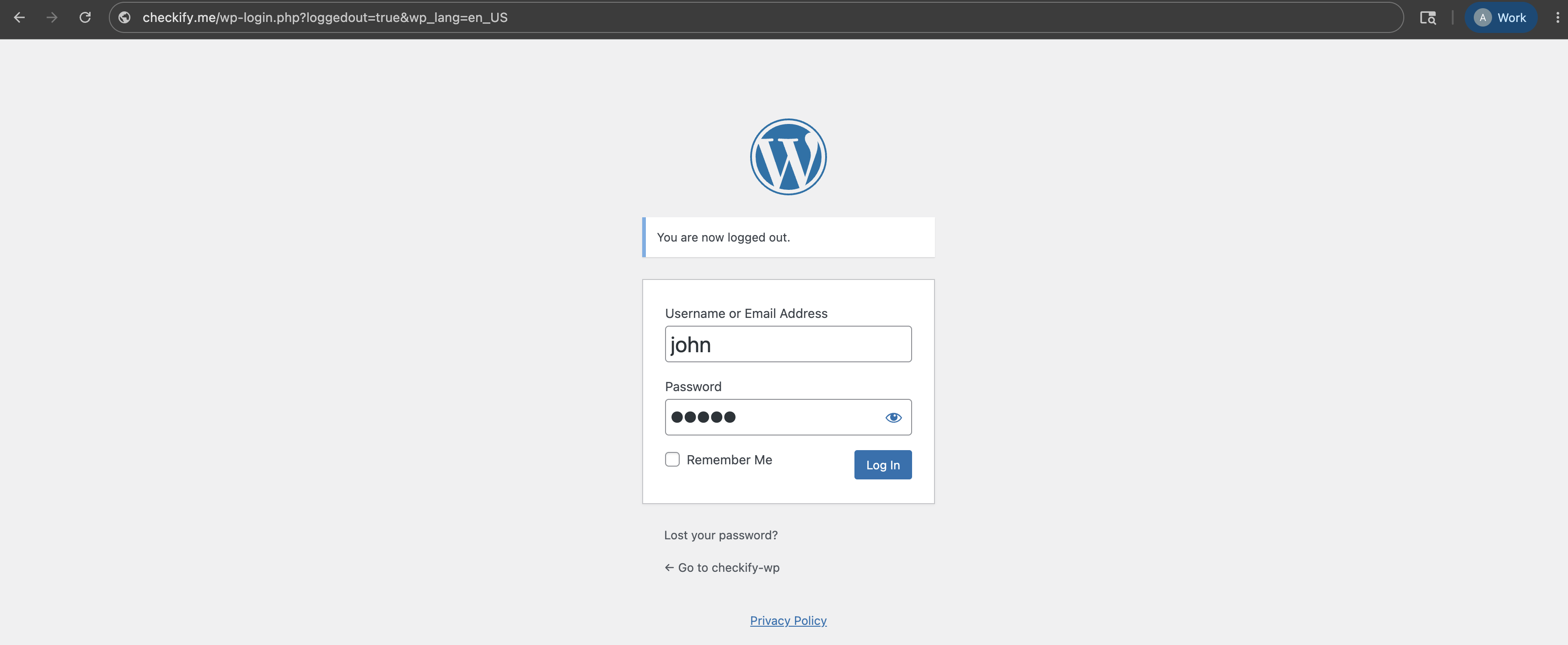
ابدأ بتسجيل الدخول إلى لوحة تحكم المشرف WordPress. يوجد هذا عادةً في عنوان موقع الويب الخاص بك متبوعًا بـ /wp-admin.
الخطوة 2
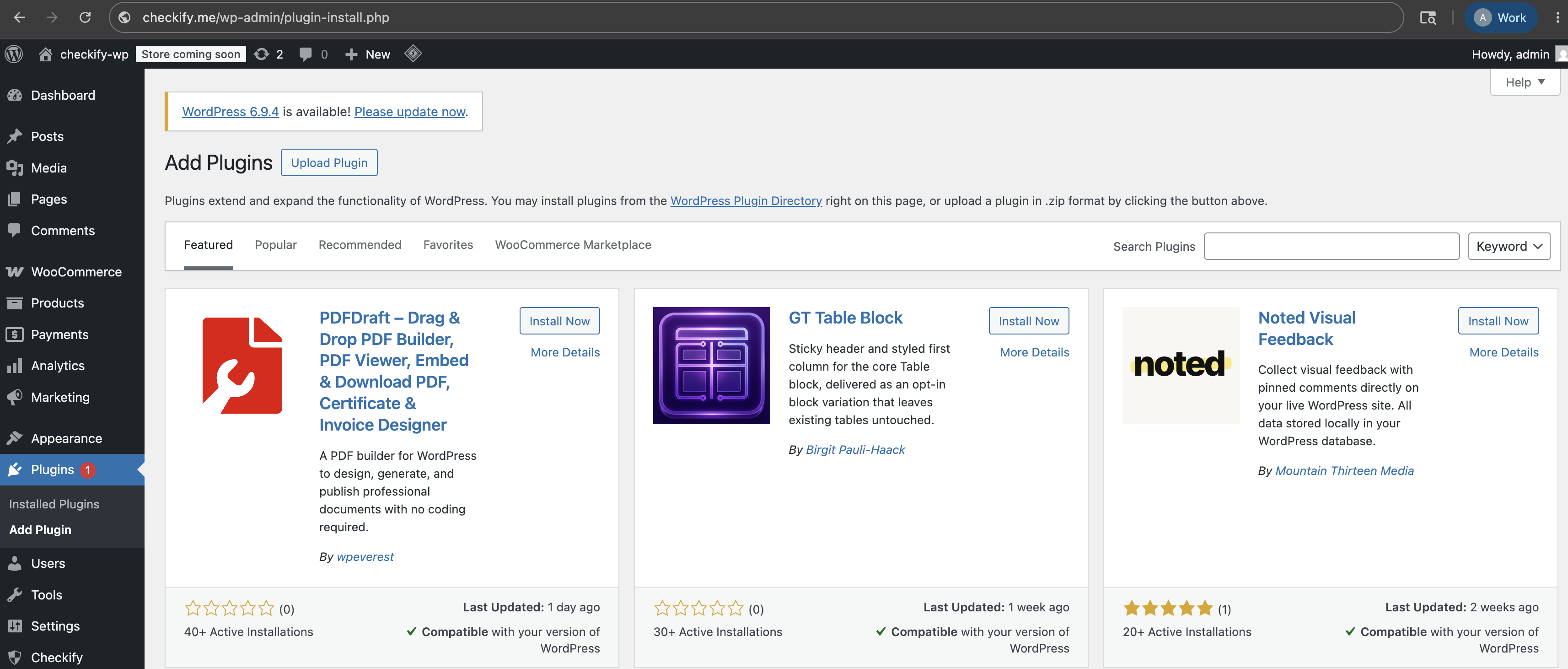
في قائمة WordPress اليسرى، افتح المكونات الإضافية، ثم اختر إضافة مكون إضافي.
الخطوة 3
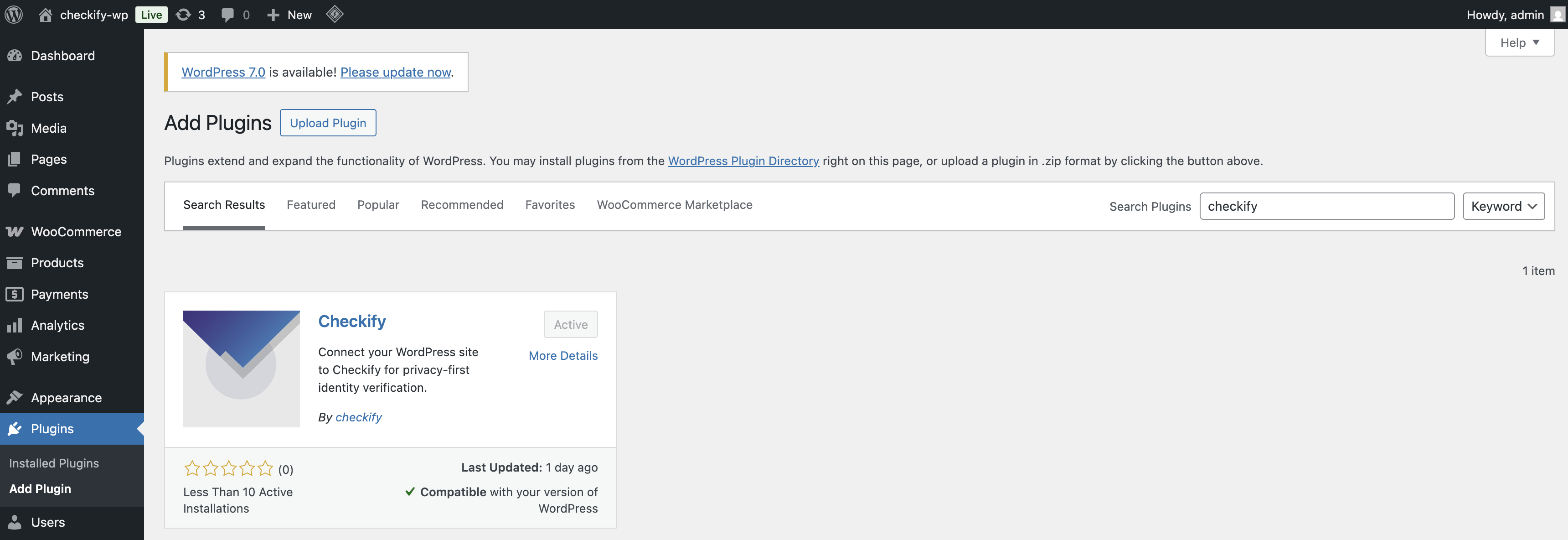
ابحث عن Checkify في دليل البرنامج المساعد WordPress. إذا تلقيت المكون الإضافي مباشرة من Checkify، فقم بتحميل ملف ZIP بدلاً من ذلك.
الخطوة 4
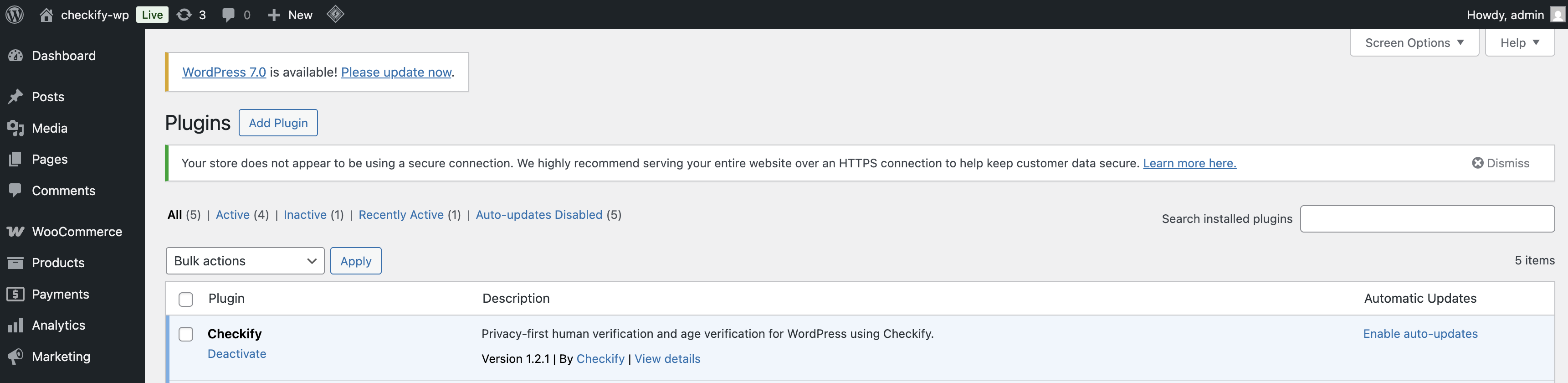
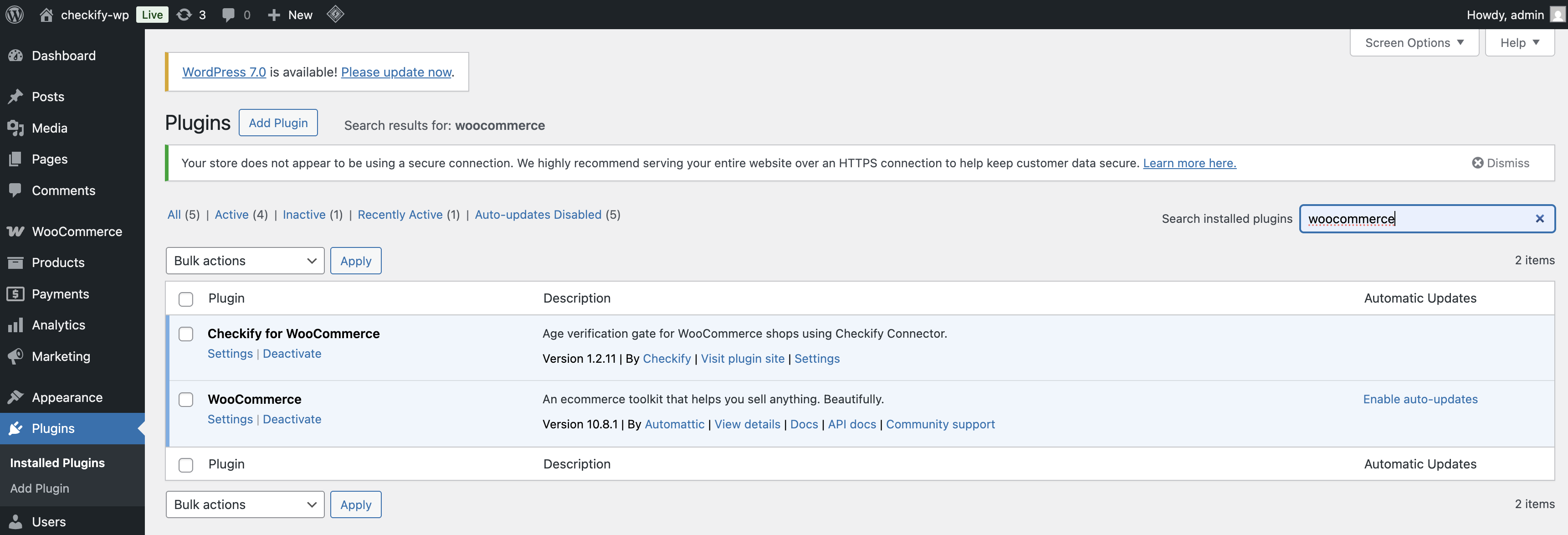
ضمن المكونات الإضافية، افتح المكونات الإضافية المثبتة وتأكد من أن المكون الإضافي Checkify نشط.
الخطوة 5
بمجرد تنشيط المكون الإضافي، يظهر عنصر القائمة Checkify في WordPress اللوحة اليسرى. افتحه لبدء الاتصال بموقعك.
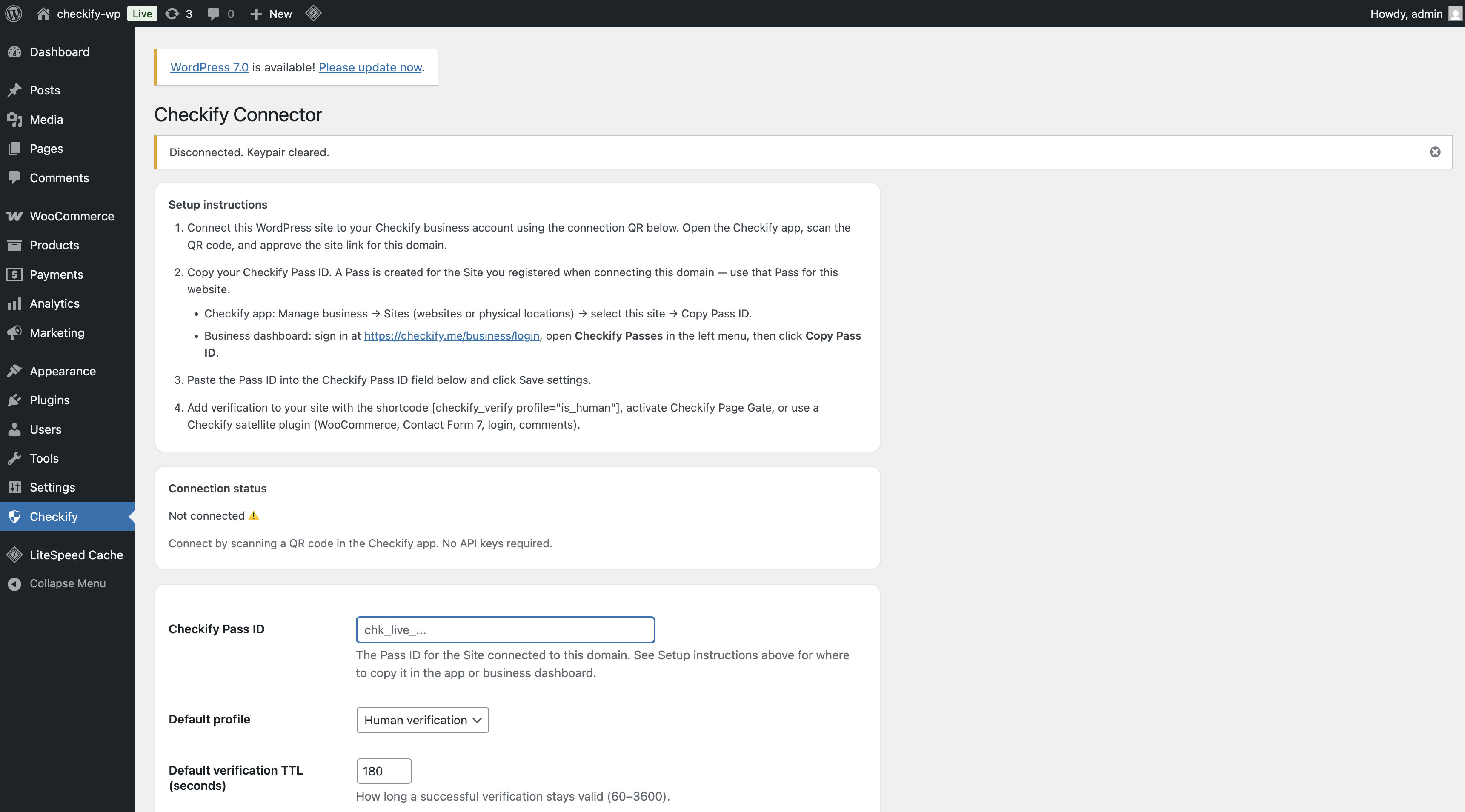
الخطوة 6
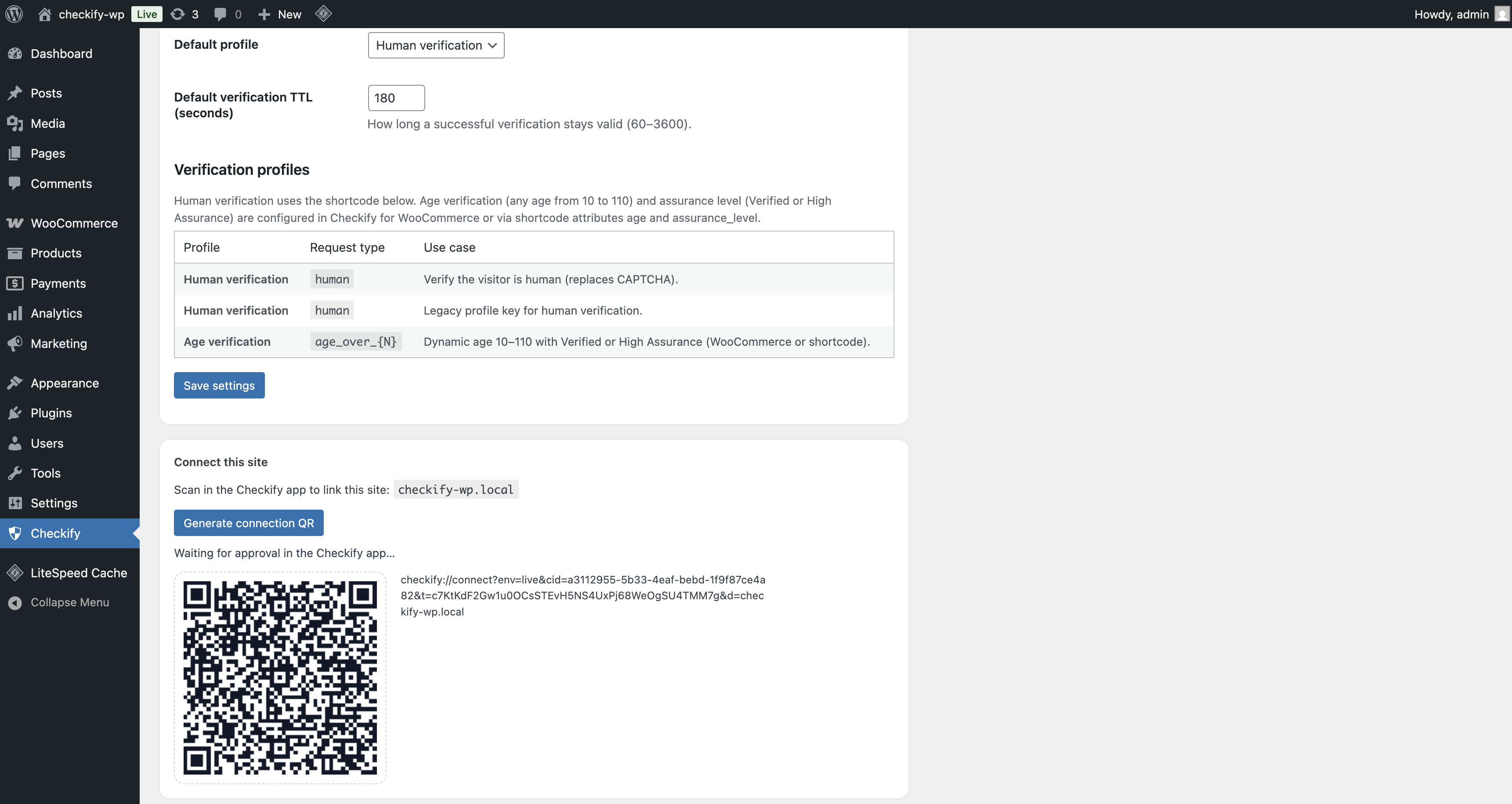
يعرض البرنامج المساعد Checkify رمز QR. قم بمسحه ضوئيًا باستخدام Checkify لتوصيل موقع WordPress الخاص بك بحساب Checkify الخاص بك.
بمجرد الاتصال، يتم ربط موقع WordPress الخاص بك من خلال موصل Checkify.
موقع WordPress الخاص بك متصل الآن بـ Checkify وجاهز للاستخدام Checkify Passes.
الخطوة 7
ابحث عن البوابة التي تحتاجها داخل البرنامج المساعد Checkify. على سبيل المثال، يمكنك اختيار بوابة الخروج WooCommerce، أو بوابة الاشتراك، أو بوابة تسجيل الدخول، أو بوابة النموذج، أو المحدد المخصص.
الخطوة 8
أنشئ Checkify Pass إما في تطبيق Checkify أو في لوحة الأعمال. تحدد بطاقة المرور طلب الإثبات، مثل التحقق البشري، فوق 18 عامًا، أو إثباتات متعددة معًا.
"قبل الخروج، تأكد من أن هذا المستخدم إنسان ويزيد عمره عن 18 عامًا."
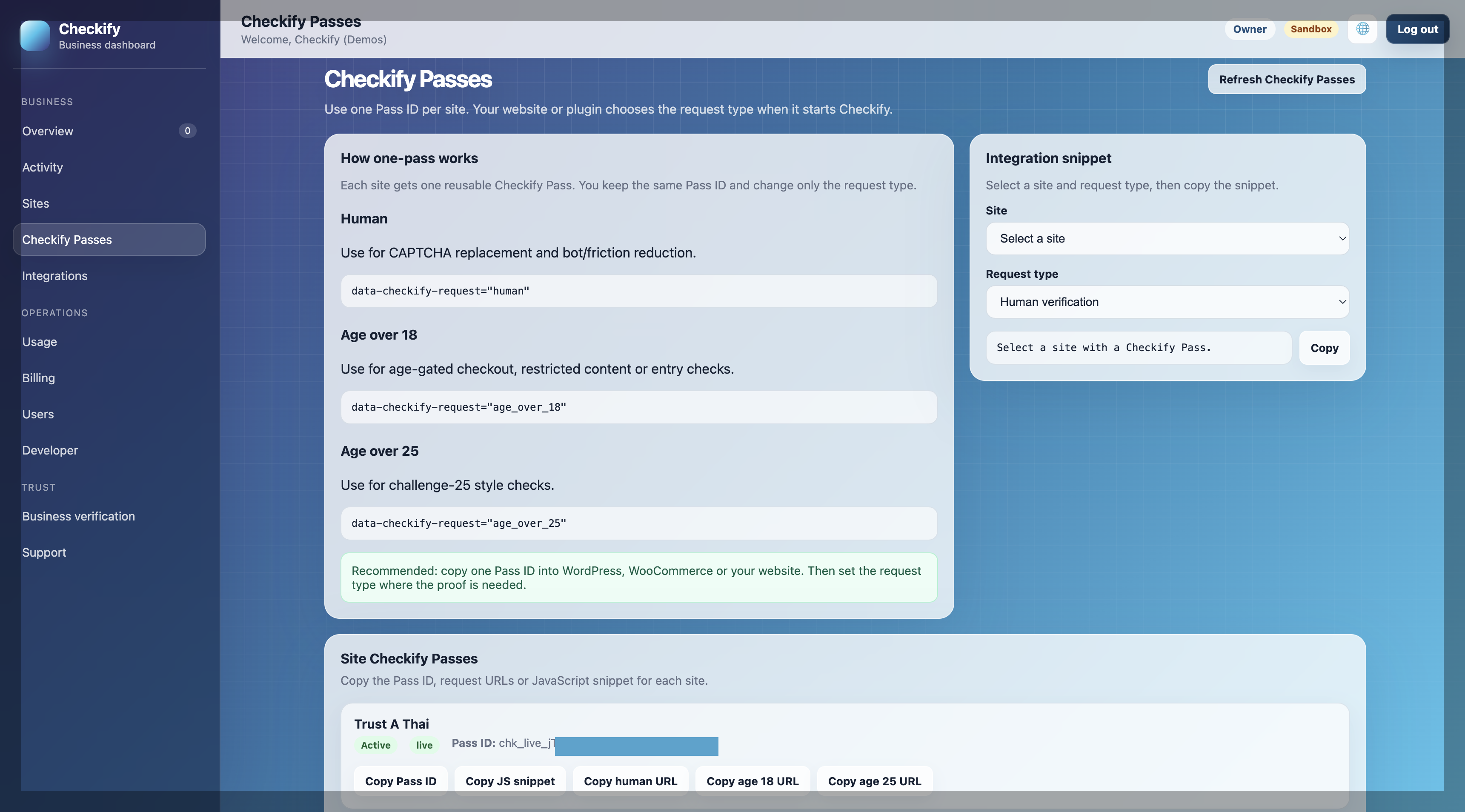
الخطوة 9
افتح البوابة المحددة في المكون الإضافي Checkify WordPress والصق معرف Checkify Pass في صفحة تفاصيل المكون الإضافي.
سيستخدم المكون الإضافي معرف المرور هذا عند تشغيل البوابة المحددة.
Checkify Pass ID: YOUR_CHECKIFY_PASS_ID
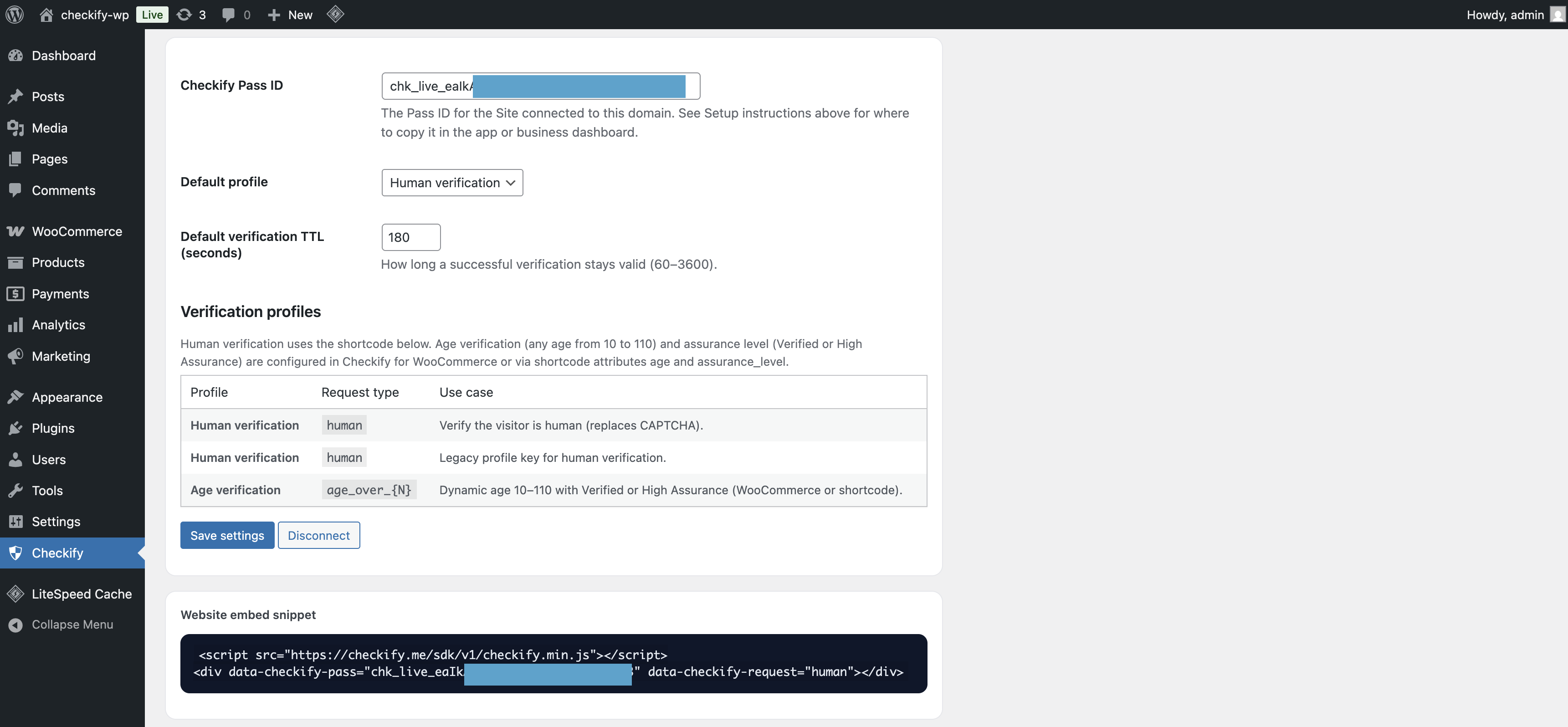
الخطوة 10
قم بتمكين البوابة المحددة واختبرها على موقع WordPress الخاص بك. عندما يصل المستخدم إلى هذا التدفق، سيُظهر Checkify طلب المرور الصحيح.
تغطي الخطوات من 1 إلى 10 موصل Checkify فقط. كل إضافة تضيف بوابتها الخاصة - قم بتثبيت الإضافة التي تحتاجها واتبع دليل الإعداد الخاص بها.
التحقق من العمر عند إتمام عملية الشراء، أو في صفحات سلة التسوق، أو في جميع أنحاء متجرك الإلكتروني. يدعم النظام قيود الفئات ومنع إتمام عمليات الشراء.
دليل إعداد GLO3 →التحقق البشري في عمليات تسجيل الدخول والتسجيل في WordPress.
تنزيل الإضافة →التعليقات على البوابة مخفية خلف علامة Checkify Pass قبل نشرها.
تنزيل الإضافة →يُشترط التحقق قبل إرسال نماذج الاتصال 7.
تنزيل الإضافة →قم بحماية الصفحات أو المنشورات المحددة باستخدام بوابة التحقق Checkify.
تنزيل الإضافة →قم بتثبيت البرنامج المساعد، وربط موقعك، واختيار بوابة، وإضافة Checkify Pass ID.