
Business
The business is the organisation, venue, shop, website owner, or service provider asking for proof.
Businesses can increase their verification level over time so users have more confidence in who is requesting the proof.
How Checkify works
Checkify lets a business ask for a specific proof, the user approves it, and the business receives a trusted result without collecting unnecessary personal data.
A Checkify Pass can request one proof or multiple proofs together, such as human verification, age threshold, or approval for a specific action.
Works for websites, apps, WordPress, WooCommerce, QR codes, and physical locations.
Overview
A business creates a site, the site creates Checkify Passes, and each Pass defines the proof the user is asked to approve.
The business is the organisation, venue, shop, website owner, or service provider asking for proof.
Businesses can increase their verification level over time so users have more confidence in who is requesting the proof.
A site is where verification happens. It can be a website, app, checkout flow, physical shop, venue, counter, or QR location.
Sites are where Checkify Passes are created and managed.
A Checkify Pass is the proof request shown to the user.
A Pass can ask for human verification, age thresholds, or multiple proofs in one request.
The flow
Checkify is designed to make verification clear for the business and controlled by the user.
Step 1
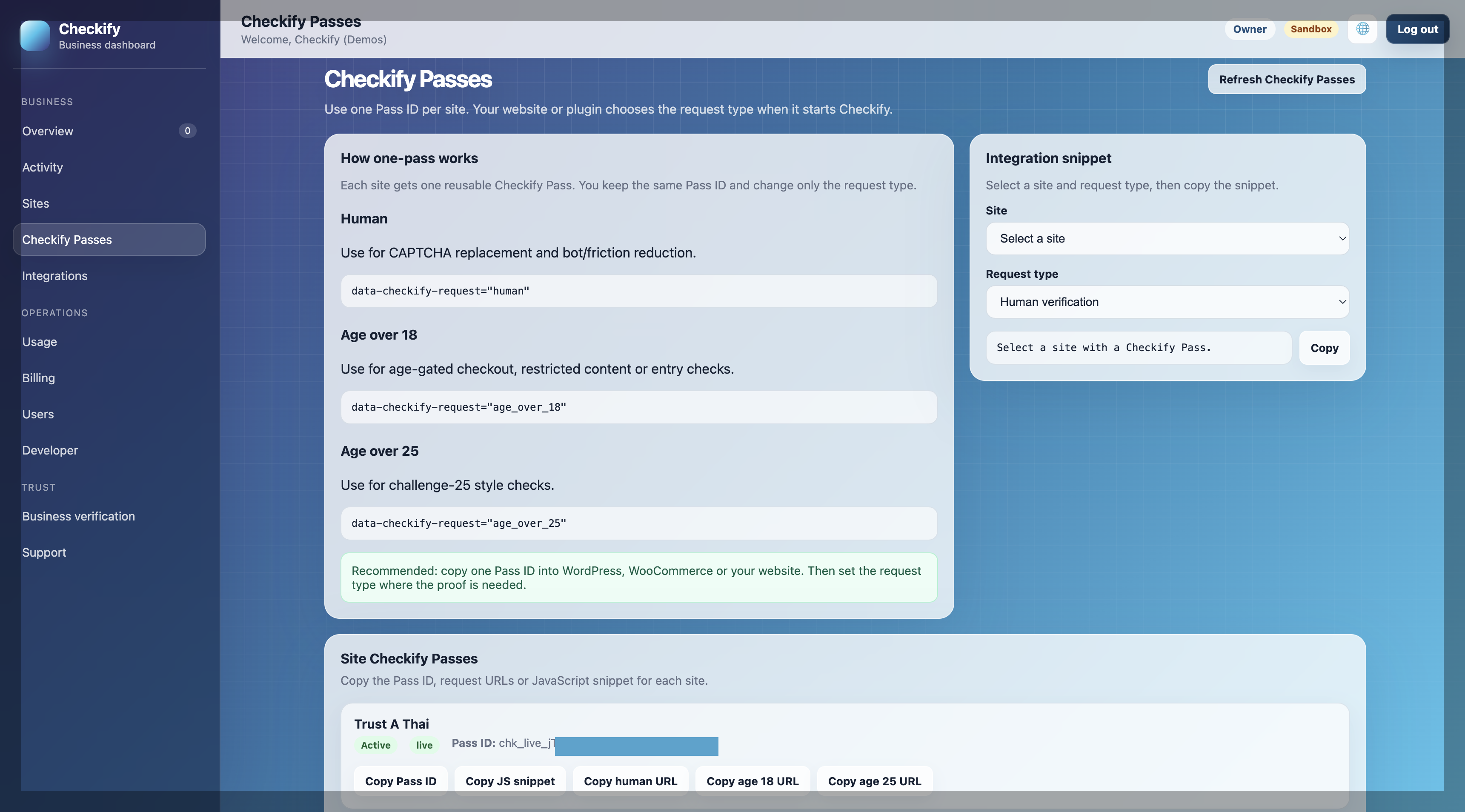
The business chooses what proof it needs. For example, a website may ask for human verification before a form is submitted, or a vape shop may ask for an age threshold before checkout.
Outcome: Checkify Pass created
Step 2
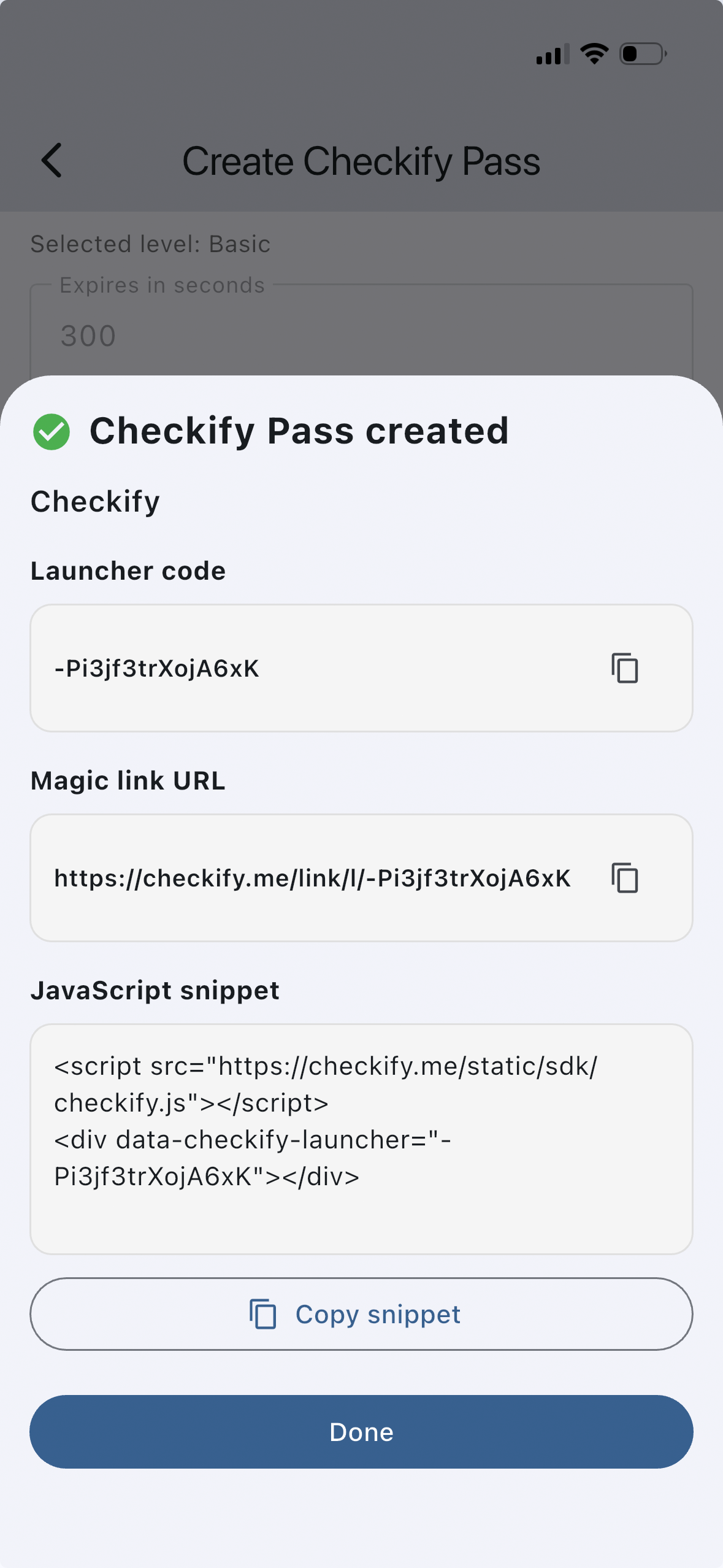
The Checkify Pass can appear on a website, inside a WordPress plugin, at WooCommerce checkout, in a custom integration, or as a QR code at a physical location.
data-checkify-pass="YOUR_PASS_ID" data-checkify-request="human"
Outcome: Pass shown to user
Step 3
The user sees what is being requested and chooses whether to approve it. The goal is to make the request narrow, clear, and consent-based.
Outcome: User approves proof
The business or site requesting the proof.
Human verification, age threshold, or another proof.
The proof result needed for that flow.
Step 4
Once the user completes the Checkify Pass, the business receives the result it needs to continue the flow.
{
  "status": "completed",
  "human_verified": true,
  "age_over_18": true
}
Outcome: Business gets trusted result
Allow a customer to complete an age-gated purchase.
Let a user continue after human verification.
Confirm a sensitive request before proceeding.
Where it works
The same proof-first approach can support websites, WordPress, WooCommerce, custom integrations, and QR-based in-person checks.
Add human verification before contact forms, account creation, or sensitive submissions.
Request age or human verification before checkout completion.
Use a Checkify Pass ID in your own website, app, or custom flow.
Show a QR code at a shop, desk, reception, counter, venue, or collection point.
Privacy-first design
A business often needs a trusted answer, not the raw personal data behind that answer. Checkify is built around requesting the narrowest proof needed for the flow.
This helps users stay in control and helps businesses avoid becoming large identity data stores when a simple proof is enough.
Ask for “human verified” or “over 18” instead of collecting more data by default.
The user can see and approve what is being requested.
Businesses can reduce unnecessary personal data collection and storage.
Users can build trust once and reuse it across supported Checkify flows.
Setup path
Start small with one site and one Checkify Pass. Expand once the flow is working.
Create a business profile so users know who is requesting the proof.
Add a website, app, checkout flow, venue, or physical location.
Choose the proofs you want the user to approve.
Add the Pass ID to your integration, plugin, website, or QR flow.
FAQ
No. CAPTCHA replacement is an easy starting point, but Checkify is designed for proof-based trust flows such as age checks, account protection, approvals, and QR-based verification.
A Checkify Pass is the proof request shown to the user. It defines what the business wants to verify and can include one or multiple proofs.
Yes. A Pass can request multiple proofs together, such as human verification and an age threshold in the same flow.
Checkify is designed to avoid unnecessary sharing by default. The business should request the narrowest proof needed for the flow.
Yes. Physical sites can use QR-based Checkify Passes for counters, venues, receptions, events, or collection points.
The business receives a proof result or verification outcome, such as completed, human verified, or age threshold confirmed, depending on the Pass configuration.
Start with one business, one site, and one proof request. Then expand to more flows when ready.